
8 min read
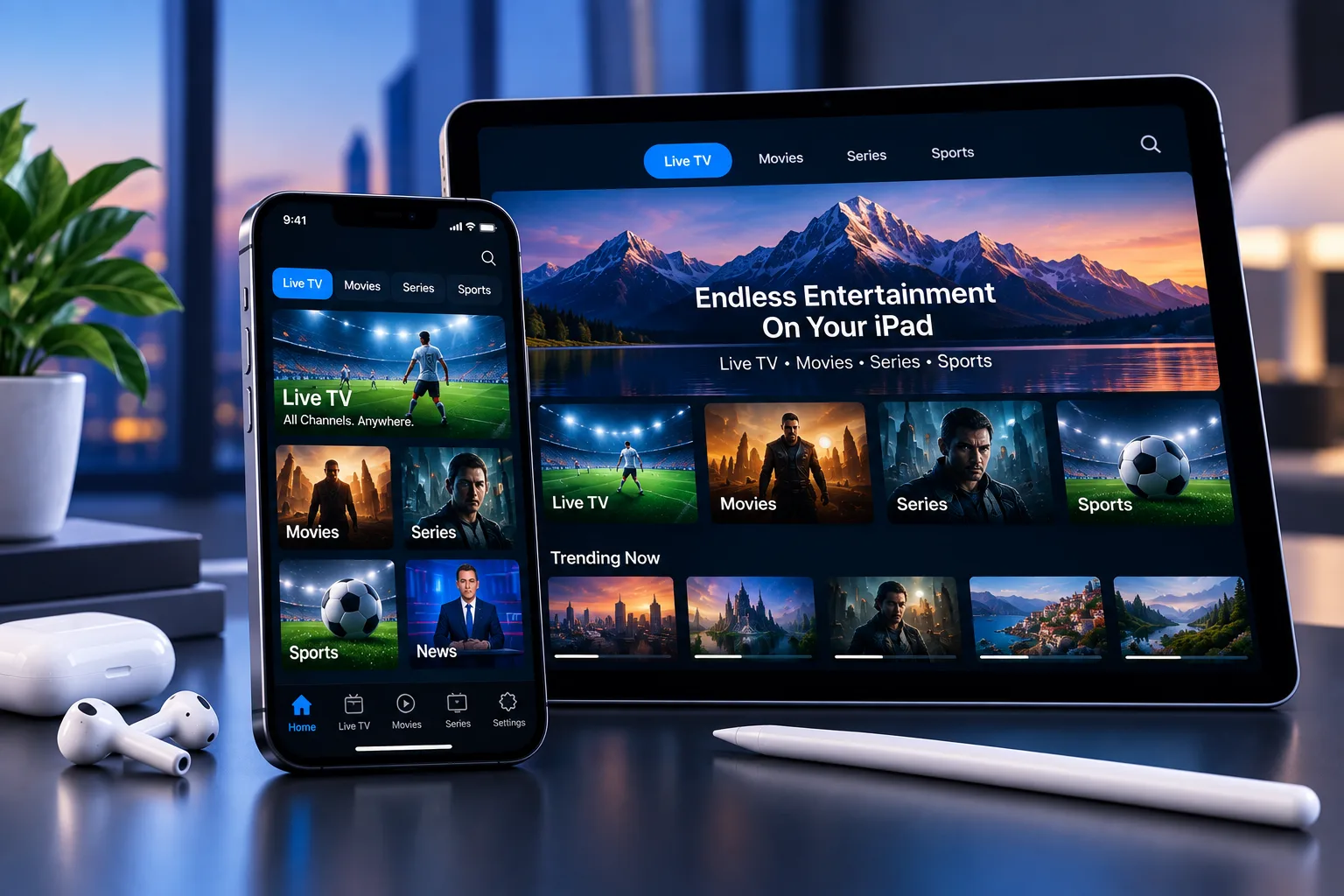
iPhone and iPad are two of the easiest devices to get 360IPTV running on, mainly because setup goes through the App Store like installing any other app — no sideloading, no developer settings to dig through. This guide walks through installing a player app, adding your subscription details, watching comfortably on a bigger screen with AirPlay, and what to do if something doesn't work the way you expect.
Before You Start
A few things make setup faster if you have them ready:
- An iPhone or iPad running a reasonably current version of iOS or iPadOS
- An Apple ID signed in on the device, so you can download apps from the App Store
- A stable Wi-Fi or cellular connection
- Your 360IPTV subscription details — a playlist URL, or a username, password and server address, provided after you subscribe
Step 1: Install a Supported IPTV Player App
Open the App Store on your iPhone or iPad and search for an IPTV player app. There are several capable options built specifically for playing IPTV streams — which one you pick is largely personal preference, since they all work with a standard playlist link or username-and-password login. If you're not sure which to choose, message us on WhatsApp and we can point you toward one that works well with 360IPTV.
Unlike some Android devices, iPhone and iPad only install apps through the official App Store, so there's no separate file manager or "install from unknown sources" step to worry about — download and installation work exactly like any other app.
Step 2: Enter Your 360IPTV Subscription Details
Open the player app once it's installed. You'll be prompted to add a playlist or account — this is where you enter the details provided with your 360IPTV subscription: either a single playlist URL, or a username, password and server address, depending on the format your chosen app expects.
Type the details exactly as provided, with no extra spaces before or after. Most player apps validate the connection right away and will show an error immediately if something was entered incorrectly, so this step is easy to double-check.
Step 3: Load Your Channels and Start Streaming
Once your subscription details are accepted, the app downloads your channel list and program guide — usually within a few seconds, depending on your connection. From there you can browse by category, search directly for a channel, or use the EPG (Electronic Program Guide) to see what's currently airing and what's coming up next.
Most player apps let you favorite or bookmark channels you watch often, which makes them much quicker to find the next time you open the app.
Watching on a Bigger Screen: AirPlay to a TV
One advantage of watching IPTV on iPhone or iPad is that you're not limited to the small screen — AirPlay lets you send the picture to a TV or an AirPlay-compatible Smart TV without any extra hardware, if you'd rather watch on the big screen for a match or a movie.
To use it, open Control Center (swipe down from the top-right corner on most iPhone and iPad models), tap the Screen Mirroring icon, and select your TV or AirPlay receiver from the list. Note that AirPlay mirrors the whole screen rather than streaming just the video, so picture quality depends on your Wi-Fi connection — for a permanent living-room setup, our Apple TV or Smart TV guides may be a more stable option if you plan to watch that way regularly.
iPhone vs iPad for IPTV: Does It Matter Which You Use?
Not for setup — the process above is identical on iPhone and iPad, and the same 360IPTV subscription works on both. The practical difference is just screen size: an iPad's larger display is naturally more comfortable for longer viewing sessions or for using the EPG grid, while an iPhone is better suited to checking a channel or catching up on the go.
There's nothing stopping you from setting up the same subscription on both an iPhone and an iPad — how many can stream at the same time comes down to your connection tier, not which specific Apple devices you use.
Common iOS Setup Problems and How to Fix Them
A handful of issues account for most IPTV setup problems on iPhone and iPad:
Player app won't accept my subscription details
Re-check for typos, extra spaces, or a missing character — these details are case-sensitive. If you're still stuck, message us on WhatsApp with a screenshot and we'll help you get it sorted.
Channels load but the picture freezes or buffers
This is almost always a connection issue rather than an app or subscription problem. Our IPTV buffering troubleshooting guide covers causes and fixes step by step.
AirPlay isn't showing my TV as an option
Make sure both your iPhone or iPad and your TV are connected to the same Wi-Fi network — AirPlay won't discover a TV on a different network. If your TV supports AirPlay but still doesn't appear, restarting the TV's Wi-Fi connection usually resolves it.
The app crashes or closes unexpectedly
Try closing the app fully (swipe it away from the App Switcher) and reopening it. If that doesn't help, deleting and reinstalling the app from the App Store usually clears out any corrupted app data without affecting your subscription details, which you'll just need to re-enter.
Playback stops when I switch to another app
This is normal, expected iOS behavior for most player apps rather than a fault — video playback generally pauses when an app moves to the background unless the app specifically supports Picture in Picture. Check your chosen player app's settings for a Picture in Picture option if you want to keep watching while using other apps.
Getting the Most Out of 360IPTV on iPhone & iPad
A couple of small habits make day-to-day use smoother: favorite the channels and categories you actually watch so they're not buried in a long list, and check the EPG before flipping through channels manually — it's usually faster to find something specific that way.
If you ever want a refresher on the underlying concepts, our guide on what IPTV is and how it works covers playlists, EPG and player apps in plain language. And if a question comes up that isn't covered here, our FAQ covers setup, billing and troubleshooting topics in one place.
Frequently Asked Questions
Do I need to jailbreak my iPhone or iPad to use IPTV?
No. Everything in this guide uses standard App Store apps and built-in iOS features like AirPlay — no jailbreaking or modification required.
Can I use the same 360IPTV subscription on iPhone and another device?
That depends on your connection tier. A 1-connection plan supports one device streaming at a time; a 2- or 3-connection plan allows more devices simultaneously. See our pricing page for the full comparison.
Does IPTV work over cellular data, or do I need Wi-Fi?
Either works, as long as the connection is stable — though streaming over cellular data will use up your data allowance faster than a home Wi-Fi connection, especially for HD or 4K content.
Can I watch IPTV on an iPad without an iPhone as well?
Yes — an iPad on its own works exactly the same way described in this guide. Neither device depends on the other.
Will using an IPTV app drain my battery quickly?
Video streaming is naturally more battery-intensive than most apps, similar to any other video app. Lowering screen brightness and connecting to Wi-Fi rather than cellular when possible both help extend battery life during longer viewing sessions.
Watching 360IPTV on Other Devices
iPhone and iPad are just one option — the same 360IPTV subscription works across our full devices lineup, including Smart TV, Firestick, Android, Apple TV and PC & Mac, each with its own dedicated setup guide if you want to add a second device later.
Ready to get started, or still deciding on a plan? Compare durations and connection tiers on our pricing page, or message us on WhatsApp and we'll help you get set up.